Verify Kako Dumbbell Set: Spreadsheet vs Sheets Checklist
Verify Kako Dumbbell Set: Spreadsheet vs Sheets Checklist
Clarifying the Missing-Parts Problem When Verifying Adjustable Dumbbell Sets
When buying an adjustable dumbbell set, the easiest thing to confuse is not the total weight, but "what exactly is included in the set." The product title may only say "adjustable dumbbell," but the actual configuration could also include connecting rods, locking collars, barbell bars, a base, storage case, or different weight plates.
This guide answers a specific question: how to turn the set description you see on a kako product page into a checklist of accessories you can verify item by item, and use Spreadsheet or Google Sheets to record the differences between variants.
When you're done, you should be able to:
Distinguish between main parts, accessories, and optional upgrades.
Record the quantity, specifications, and whether each accessory is included in the current variant.
Cross-check product images, spec text, and the packing list, and mark items that cannot be confirmed.
Keep a reviewable verification record before placing your order.
This article does not replace real-time information on the product page, and it does not confirm the current stock, price, or complete contents of any specific dumbbell set. Before publishing, check the corresponding product page again and record the verification date, currency, and selected variant. 📋
How to View Product Cards and Set Descriptions on the kako Site Spreadsheet
When viewing candidate products on kako-spreadsheets.com, first treat the product card as an index, and don't judge the set quantity from the title alone. The current visible product page examples on the site include fields such as product name, price, QC Photos, variant selection, and Description. The completeness of fields may vary from product to product, so dumbbell sets still need to be checked page by page.
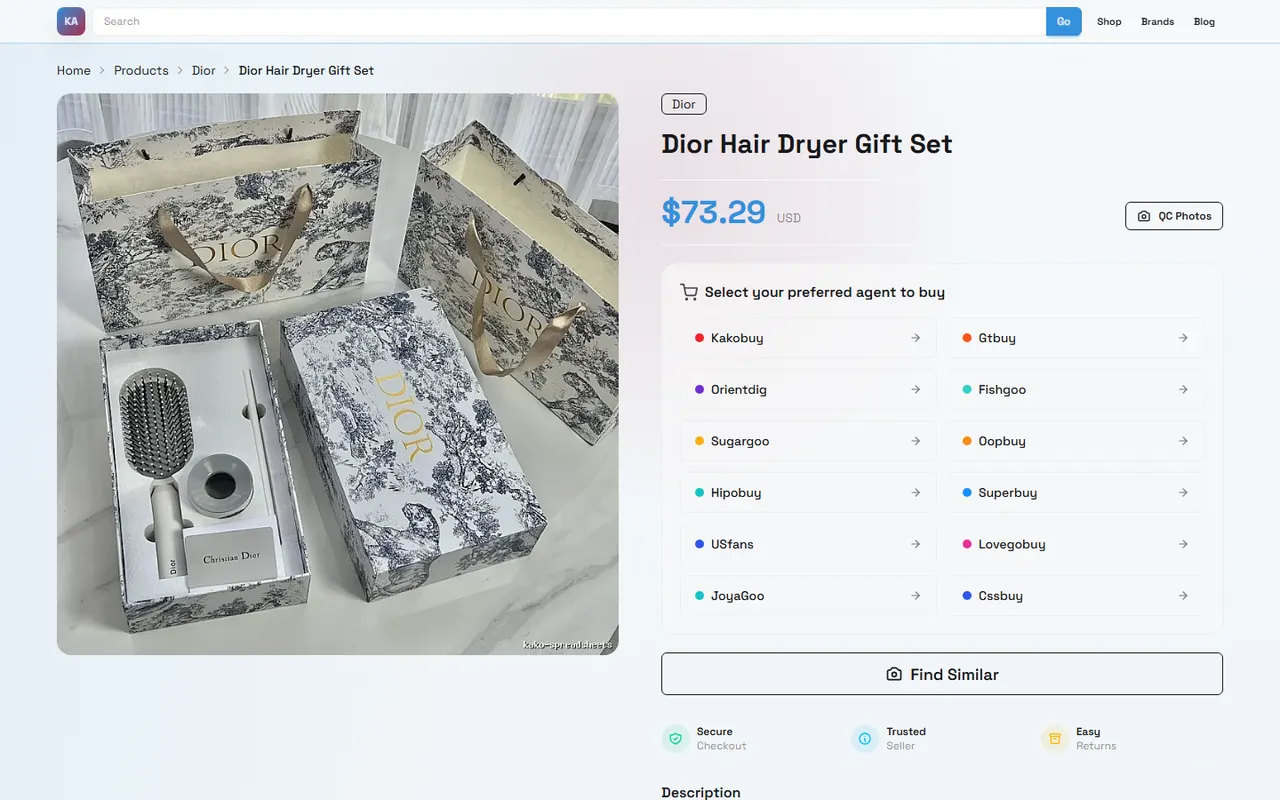
Image: A sample screenshot of a kako product page, used to illustrate that information like product name, price, variant, QC Photos, and description is usually located on the product card or details area. The screenshot shows another product as an example, not packaging evidence for a dumbbell set.
Check in the following order:
Record the product title and the variant name shown on the page.
Check whether the specs, description, and product images clearly show weight plates, handles, connecting rods, or locking collars.
Distinguish between items "included in the set" and items "available for separate purchase."
Record what the page does not state, such as the weight of a single plate, total number of plates, or whether a storage rack is included.
Save the verification date to avoid mistaking later updated page information for the original information at the time of ordering.
If the page only has promotional descriptions and no clear quantity fields, do not treat the number of round plates in the image as the final packing list on your own. Images may show a combination effect, a suggested configuration, or accessories that are not included.
How to Break Down Main Parts, Accessories, and Quantity Fields in Google Sheets
Google Sheets is good for breaking natural-language product descriptions into structured fields. It's best to have one row per variant, or one row per accessory, and keep the entire sheet consistent once you choose. For comparing multiple variants, recording "one accessory per row" makes it easier to spot differences.
You can use these fields:
Field | What to record | Key points to verify |
|---|---|---|
Variant name | The actual spec or set option shown on the page | Don't replace the original name with your own abbreviation |
Main part | Dumbbell handle, locking mechanism, or main body component | Is it a pair, or a single unit |
Accessory name | Weight plates, locking collars, connecting rods, base, etc. | Is it clearly written in the packing list |
Quantity | The quantity clearly given on the page | Fill in "to be confirmed" if not stated |
Single item spec | Weight of a single plate, bar length, or size | Don't infer single item specs from total weight |
Evidence location | Product image, spec text, or description paragraph | Write the source area clearly |
Confirmation status | Confirmed, partially confirmed, pending inquiry | Prioritize pending items before ordering |
In Google Sheets, the quantity field should be a pure number, with a separate unit field. For example, put 4 in quantity and "plates" in unit; don't put "4 plates" directly in the quantity column. This avoids inconsistent text formats when comparing and filtering.
If the page says "adjustable up to a certain weight," don't automatically convert that into the total number of plates. The adjustable limit may relate to a single dumbbell, the entire set, different accessory combinations, or a specific variant; you must find the corresponding spec description.
Cross-Check Product Images, Spec Text, and Packing List
A reliable verification record should have at least three types of evidence: product images, spec text, and the packing list. Only when all three agree should an item be marked as "confirmed."
When cross-checking, you can use a "text first, then images" order:
First read the clearly stated included items in the description or specs.
Then check whether the images show those items.
Finally, check whether the images show any items not mentioned in the text.
Items that appear in images but are not mentioned in text should be marked as "shown in image, packaging to be confirmed." Items stated in text but not shown in images should be marked as "stated in text, not shown in image." Neither case should be directly treated as a missing part, nor directly treated as an included accessory.
Common confusions include:
"A set" may mean a pair of dumbbells, or one main body plus several weight plates.
"Adjustable" only means the structure or weight can be adjusted; it doesn't necessarily mean all accessories needed for adjustment are included.
A connecting rod may turn the dumbbell into a barbell, but it could be a separate variant or upgrade.
Storage racks, training benches, and floor mats may appear in display images but not be part of the basic set.
The quantities of left and right handles, locking collars, and weight plates may be counted separately; don't record just one total.
For any item that cannot be confirmed from the page, use "pending inquiry" instead of guessing. That way, when contacting the seller or platform customer service, you can copy the checklist directly and confirm item by item. ✅
Recording Accessory Differences Between Variants
The same product may have single, pair, basic, upgraded, or different weight combinations. When comparing variants, don't compare only the weight numbers in the title; also compare the package composition.
It's best to create a separate row for each variant, and keep the following information complete:
Original variant name.
Price and currency shown on the page.
Quantity of main parts.
Quantity of each type of weight plate and single plate spec.
Quantity of locking collars, connecting rods, and storage items.
Whether the page clearly states "included" or "sold separately."
Questions that still need confirmation.
If one variant's quantity is not stated, but another variant's quantity is stated, don't use the difference to infer missing accessories. Different variants may change the entire set structure, not just add a few plates.
Also record the page verification date. Prices, stock, variant names, and page content may change; this guide does not apply the prices or configurations of other products in the current page examples to dumbbell sets. 🗓️
How to Build a Pending-Items List When Page Information Is Incomplete
When the page doesn't support a full inventory check, first create a list of questions, then decide whether to continue with the candidate. Questions should be specific enough for the seller or platform to give a clear answer.
You can use these questions:
Is the currently selected variant a single dumbbell or a pair?
What is the total number of weight plates and the weight of each plate?
How many handles, locking collars, and connecting rods are included?
Are the storage rack or other equipment in the image included in this variant?
Is the product packaged as a complete set, or split into multiple packages?
Is the weight shown on the page the maximum weight of a single dumbbell, or the total weight of the entire set?
If there are different colors or specs, are the accessory quantities the same?
Do not ask for or disclose unnecessary personal information. To verify product contents, you only need the product link, variant name, and specific configuration questions; you don't need an order number, payment card information, or full shipping address.
If key questions cannot be answered before ordering, mark the product as "insufficient information" instead of filling in the gaps with images or experience from similar products. ⚠️
Which Method Is Better for Quick Browsing vs Item-by-Item Inventory
Spreadsheet is better for quickly collecting multiple candidate products. You can first record product titles, variants, page prices, main specs, and pending items, then decide which products are worth a deeper check.
Google Sheets is better for item-by-item inventory and multi-person review. It supports filtering, sorting, notes, and status management, making it easy to separate "confirmed," "partially confirmed," and "pending inquiry."
A simple division of work is:
Initial screening: Use Spreadsheet to quickly organize candidates.
Deep verification: Break the selected product into main parts, accessories, and quantity fields.
Inquiry phase: Focus on pending items.
Before ordering: Keep only candidates with complete evidence and clear variants.
The QC Photos shown on the platform page can serve as an entry point for later quality verification, but whether QC photos cover every accessory, whether they can be obtained before ordering, and the specific inspection scope must be based on the actual process and order conditions. Do not treat the QC Photos label on the product page as a completed packaging count.
Complete the Set Quantity Checklist Before Ordering
Before ordering, check item by item:
Product title and selected variant name have been saved.
Single or pair quantity has been confirmed.
Total number of plates, single plate spec, and unit are recorded separately.
Handles, locking collars, and connecting rods have been verified separately.
Items shown in images but not explained in text have been marked as pending confirmation.
Display items like storage racks and training benches have been confirmed whether included.
Page price, currency, and verification date have been recorded.
Unconfirmable items have not been filled in with model, image, or similar product information.
Plan to continue checking the physical contents with QC photos or warehouse inspection after receipt.
Only when key quantities and variant information are consistent is it appropriate to move the product to the "ready to order" list. If the total weight is clear but the accessory quantities are not clear, it should still remain on the "pending confirmation" list.
Next Steps: Keep Only Candidates with Consistent Information
After comparing Spreadsheet and Google Sheets, filter out candidates whose product name, variant, accessory quantities, and spec text are consistent with each other. For products that still have conflicts, prioritize asking specific questions; don't cover up information gaps by changing keywords, referring to other products, or counting images.
The value of this verification is to reduce the risk of discovering missing accessories only after receipt, but it cannot guarantee product quality, stock, or shipping results. Prices, stock, page fields, and purchase process should all be re-verified before actually ordering.
If you cannot obtain a complete packing list, it is not recommended to "buy first and see later," especially if you need a specific weight combination, multiple users, or a connecting rod for training. Better candidates to keep comparing are those where the page clearly lists variants and accessory quantities, key fields can be saved, and later inspections have executable records.
Agent Platform Shopping FAQ
1. Is it safe to browse spreadsheets on kako-spreadsheets.com?
kako-spreadsheets.com does not collect any personal information. It serves only as a product catalog for the agent platform, and all transactions are completed on the agent platform.
2. What should new users know when accessing the agent platform for the first time through kako-spreadsheets.com?
First-time users who access the Taobao agent through the spreadsheet usually receive a new-user shipping discount package, and should also check the step-by-step shopping tutorial for beginners.
3. What exactly are the QC photos mentioned on kako-spreadsheets.com?
All dropshipping platforms have professional quality inspection teams. When your product arrives at the platform warehouse, the platform will conduct quality testing and take QC photos, usually three photos, and check whether the color, size, specifications, and quantity match the order. They also check for quality issues, but for electronics, only the appearance is checked. If quality issues or size/color errors are found, the team will immediately apply for a return from the seller, ensuring you receive a quality product.
4. How can I effectively view QC photos on kako-spreadsheets.com?
When viewing QC photos, you should focus on the specific features of the product you purchased. For example, for shoes, check key areas like the toe, heel, and tongue, and look at stitching, shoe shape, and tongue thickness to judge if they are high-quality shoes; for clothing, check details like the neck label, logo embroidery, fabric, and the flatness of the collar and cuffs.
Browse our latest products and find your next favorite item.